Serverless Picture Gallery on Google Cloud - Part 3
13 January 2026
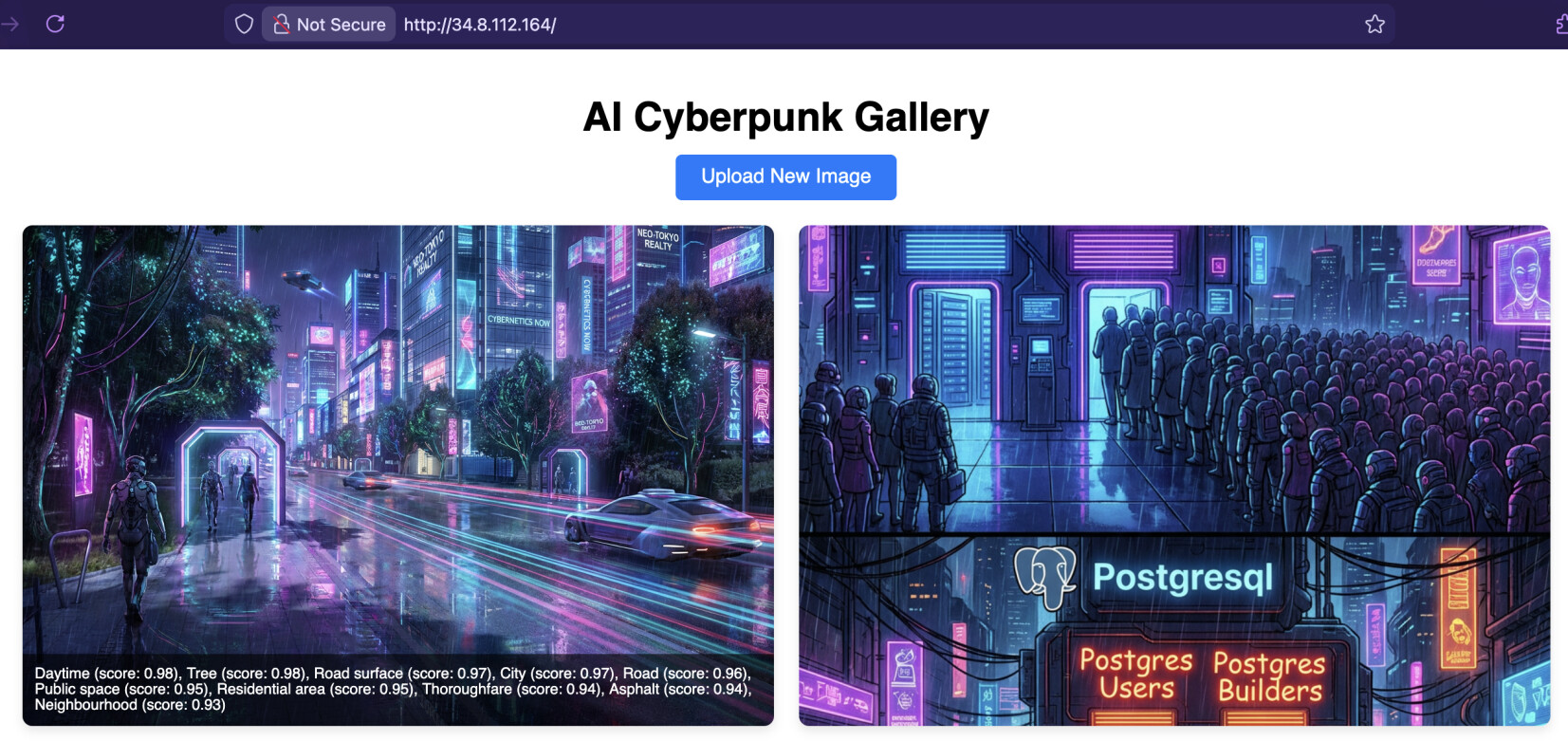
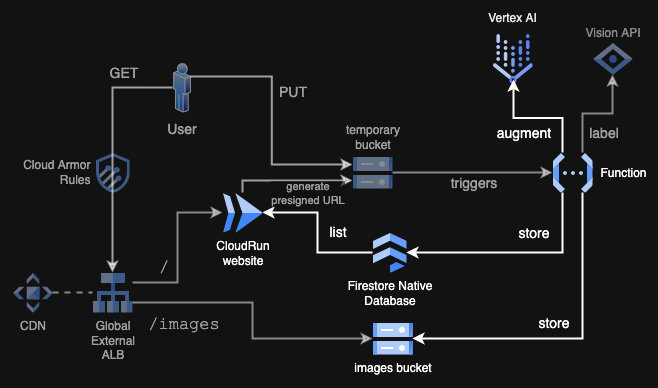
In the previous episode we created a function that was triggered when a new object was uploaded to the temporary bucket. In this part, we are going to process each image with Gemini Nano Banana to make it look like Cyberpunk (or whatever else you imagine in your prompt). Each processed image will be placed into the main bucket and all the metadata will be kept in Firestore database. Then the index of the site is going to list all the images based on the entries in the database.
GitHub repo: ppabis/gcp-photos-gallery
Creating a Firestore database
Most logical step is to first create a Firestore database. We will be using it in native mode as this is more modern than the datastore one and we don't need MongoDB compatibility with Enterprise edition. Native mode will look either way similar to Mongo as you create collections there as well compared to "kinds" in Datastore. Also in advance we will give permissions for our Service Accounts from both Cloud Run services to interact with this database - the function will have write permissions and the index website will have only read permissions.
resource "google_firestore_database" "photos_db" {
  name                    = "photos-db"
  location_id             = "europe-west4"
  type                    = "FIRESTORE_NATIVE"
  delete_protection_state = "DELETE_PROTECTION_DISABLED"
}

resource "google_project_iam_member" "website_firestore_reader" {
  project = var.project_id
  role    = "roles/datastore.viewer"
  member  = "serviceAccount:${google_service_account.cloud_run_sa.email}"
}

resource "google_project_iam_member" "processor_firestore_user" {
  project = var.project_id
  role    = "roles/datastore.user"
  member  = "serviceAccount:${google_service_account.processor_sa.email}"
}
Revisiting the event triggered function
Let's go back to the function that processes the image. First we want to save the details in the database. Because Firestore is a NoSQL database, you can put any structure to each object in a collection without worrying about any rigid schema. We can put some date and labels returned from Vision API as the first test. I will put here again the main handler function of the Cloud Run Function.
@functions_framework.cloud_event
def process_image(cloud_event):
    data = cloud_event.data

    def log(msg, sev="INFO"):
        header = request.headers.get("X-Cloud-Trace-Context")
        tid = header.split("/")[0] if header else "n/a"
        print(json.dumps({
            "message": msg,
            "severity": sev,
            "logging.googleapis.com/trace": tid
        }))

    image_path = f"gs://{data['bucket']}/{data['name']}"
    labels = label_image(image_path, log)
    log("Labels detected by Vision API: " + ", ".join(labels))
As you see, we were receiving a list of labels from Vision API and printing them
out with log function. Into requirements.txt add google-cloud-firestore and
write the following function that will let us save the data.
import os
from google.cloud import firestore

def save_image_details(image_name, bucket_name, labels, log):
    db_name = os.environ.get("FIRESTORE_DB", "(default)")

    try:
        db = firestore.Client(database=db_name)
        doc_ref = db.collection("photos").document(image_name)
        doc_ref.set({
            "filename": image_name,
            "bucket": bucket_name,
            "labels": labels,
            "processed_at": firestore.SERVER_TIMESTAMP
        })
    except Exception as e:
        log(f"Error saving image details to Firestore: {e}", "ERROR")
Now we can simply call this function in the handler with appropriate arguments.
Also in Terraform you need to add an environment variable called FIRESTORE_DB
that will contain the name of the database to connect to.
@functions_framework.cloud_event
def process_image(cloud_event):
    data = cloud_event.data
    ...

    image_path = f"gs://{data['bucket']}/{data['name']}"
    labels = label_image(image_path, log)
    log("Labels detected by Vision API: " + ", ".join(labels))
    save_image_details(data['name'], data['bucket'], labels, log)
resource "google_cloudfunctions2_function" "image_processor" {
  name        = "image-processor"
  location    = "europe-west4"
  ...
  service_config {
    max_instance_count    = 3
    ...

    environment_variables = {
      FIRESTORE_DB  = google_firestore_database.photos_db.name
    }
  }
}
Augmenting the image with Vertex AI
In the same place we will now create another helper function that will call
Nano Banana on Vertex AI. Add google-genai and Pillow to the
requirements.txt file. First we need to download the image into memory as Gemini
client expects us to pass raw data. I will place it in another function.
from google.cloud import storage
def _get_image_from_bucket(image_name, source_bucket):
    blob = storage.Client().bucket(source_bucket).blob(image_name)
    blob.reload()
    mime_type = blob.content_type or "image/jpeg"
    image_bytes = blob.download_as_bytes()
    return image_bytes, mime_type
The next one is calling the actual model in order to augment the image based on
the prompt. The prompt is a parameter for now to fill later based on your taste.
Because we will be using Gemini through Vertex AI, it's important to mark
vertexai=True in the client constructor as otherwise it will try to use
standalone Gemini API to which you need an API key. In the response we iterate
through all parts as the model also returns thinking process and some possible
comment as well. We log the messages (viewable in Logs Explorer) and return only
image inline data - the focus of our project.
import google.genai as genai
import google.auth

def _gemini_augment(image_data, mime_type, prompt, log):
    credentials, project_id = google.auth.default()

    client = genai.Client(
        vertexai=True,
        project=project_id,
        location="global"
    )

    # Call Nano Banana Pro to augment the image
    response = client.models.generate_content(
        model="gemini-3-pro-image-preview",
        contents=[
            prompt,
            genai.types.Part.from_bytes(data=image_data, mime_type=mime_type)
        ]
    )

    for candidate in response.candidates:
        for part in candidate.content.parts:
            if part.text is not None:
                log(f"Gemini output text: {part.text}")
            if part.inline_data is not None:
                log(f"Inline data found: {len(part.inline_data.data)} bytes")
                return part.inline_data.data

    log("No augmented image data found")
    return None
The next function will be used for storing the augmented image into our actual
photos bucket. Gemini always returns PNG format. As a return we will get a
public URL of the image (starts with https://storage.googleapis.com).
def _upload_image_to_bucket(image_bytes, target_bucket, image_name, log):
    # Change extension to PNG, keep all the other parts of the name
    target_blob_name = f"images/{'.'.join(image_name.split('.')[:-1])}.png"
    target_blob = storage.Client().bucket(target_bucket).blob(target_blob_name)
    target_blob.upload_from_string(image_bytes, content_type="image/png")
    log(f"Successfully uploaded augmented image to {target_blob.public_url}")
    return target_blob.public_url
Together the high level function will look something like this, where we first load the image, send it to Gemini with prompt for augmentation and then look for returned image to save in the bucket. I also here give you some example prompt I used for this project - feel free to adapt it however you like. I added Vision API labels into the prompt as well, although I believe they won't affect the result anyhow.
def augment_image(image_name, source_bucket, target_bucket, labels, log) -> str:
    PROMPT = f"""
    The image has the following labels detected by Vision API: {", ".join(labels)}.
    Augment this image to make it look like a scene from cyberpunk.
    Futuristic, neons, bright colors in dark environments.
    """

    image_bytes, mime_type = _get_image_from_bucket(image_name, source_bucket)
    augmented_image_data = _gemini_augment(image_bytes, mime_type, PROMPT, log)
    if augmented_image_data is None:
        return None
    return _upload_image_to_bucket(augmented_image_data, target_bucket, image_name, log)
That way we can add this function to our workflow and modify the Firestore
record as well. We extend it by argument called augmented_image_url. What is
more we need to load another environment variable which is the target bucket for
storing photos as the Cloud Run Function doesn't know where to do it.
def save_image_details(image_name, bucket_name, labels, augmented_image_url, log):
    db_name = os.environ.get("FIRESTORE_DB", "(default)")

    try:
        db = firestore.Client(database=db_name)
        doc_ref = db.collection("photos").document(image_name)
        doc_ref.set({
            "filename": image_name,
            "bucket": bucket_name,
            "labels": labels,
            "augmented_image_url": augmented_image_url,
            "processed_at": firestore.SERVER_TIMESTAMP
        })
    except Exception as e:
        log(f"Error saving image details to Firestore: {e}", "ERROR")

@functions_framework.cloud_event
def process_image(cloud_event):
    TARGET_BUCKET = os.environ.get("TARGET_BUCKET")
    data = cloud_event.data
    ...

    image_path = f"gs://{data['bucket']}/{data['name']}"
    labels = label_image(image_path, log)
    url = augment_image(data['name'], data['bucket'], TARGET_BUCKET, labels, log)
    save_image_details(data['name'], data['bucket'], labels, url, log)
resource "google_cloudfunctions2_function" "image_processor" {
  name        = "image-processor"
  location    = "europe-west4"
  ...
  service_config {
    max_instance_count    = 3
    ...

    environment_variables = {
      FIRESTORE_DB  = google_firestore_database.photos_db.name
      TARGET_BUCKET = google_storage_bucket.photos_bucket.name
    }
  }
}
We also need to give some additional permissions to the service account of our function. Firstly, it needs to be able to write to the photos bucket and also call Vertex AI.
resource "google_project_iam_member" "processor_ai_user" {
  project = var.project_id
  role    = "roles/aiplatform.user"
  member  = "serviceAccount:${google_service_account.processor_sa.email}"
}

resource "google_storage_bucket_iam_member" "processor_target_writer" {
  bucket = google_storage_bucket.photos_bucket.name
  role   = "roles/storage.objectCreator"
  member = "serviceAccount:${google_service_account.processor_sa.email}"
}
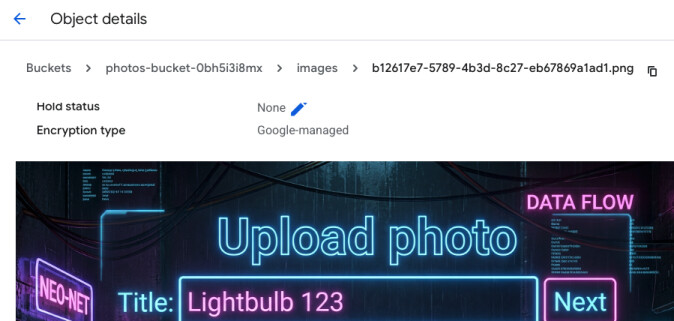
Now when we upload the image to the gallery, an augmented version of it should land in the photos bucket and records should be created in Firestore database.

Displaying all photos on the website
We need to first add environment variables pointing to the database name and
giving the load balancer endpoint (useful to fix the URL of the image). We don't
need to give permissions for the website to read the bucket as we have
already given public read access to it for allUsers and all the images we want
to display are already indexed by Firestore.
resource "google_cloud_run_v2_service" "website_service" {
  name                = "website-service"
  ...

  template {
    containers {
      ...
      env {
        name  = "UPLOAD_BUCKET"                     # Was here already
        value = google_storage_bucket.tmp_upload_bucket.name
      }

      env {
        name  = "FIRESTORE_DB"
        value = google_firestore_database.photos_db.name
      }

      env {
        name  = "DOMAIN"
        value = google_compute_global_address.lb_ip.address    # Unless you have your own domain
      }
    }
  }
  ...
}
Add google-cloud-firestore to requirements.txt of the index website (the
one built with Docker locally) and modify the main.py file. First initialize
the Firestore client and then change the index to stream all the object in the
database, get properties that interest us and create a list out of it. Further
this list is passed to Jinja template to render a nice looking HTML from it. I
just give the small excerpt of the website as all the CSS can be easily
vibe-coded to make something spectacular 🤣.
...
db_name = os.environ.get("FIRESTORE_DB", "(default)")
db = firestore.Client(database=db_name)

@app.get("/")
def index(request: fastapi.Request):
    domain = os.environ.get("DOMAIN")
    records = db.collection("photos").stream()
    photos = []

    for record in records:
        data = record.to_dict()
        url = data.get("augmented_image_url", "https://picsum.photos/640/480")

        # Replace the googleapis with domain if it's not a https://picsum.photos placeholder
        url = url.replace("https://storage.googleapis.com/", "http://{domain}/")

        photos.append({
            "url": url,
            "labels": ", ".join(data.get("labels", []))
        })

    return templates.TemplateResponse(
        "index.html", {
            "request": request,
            "photos": photos
        }
    )
<ul class="gallery">
    {% for photo in photos %}
        <li>
            <img src="{{ photo.url }}" alt="Gallery Image">
            <div class="overlay">
                {{ photo.labels }}
            </div>
        </li>
    {% endfor %}
</ul>
That way we can now view all the images on our website and look at the labels
that were detected. There's so much more you can do with this project. Maybe
generating videos with Veo or creating a story for each image with Gemini Flash
and playing Chirp-generated narration onmouseover?